Showing posts with label gilding flakes. Show all posts

Sunday, 1 June 2014

Happy June & Happy Birthday Mum!


Hi All

Well the first of June means two things, we are nearly half way through the year eek! Can’t believe it! And the other thing it is my Mum’s Birthday …. Happy June and Happy Birthday Mum (who funnily enough is called June ;)) As you read this we are on a trip to Country Baskets in Gateshead to be inspired by the fabulous demonstrations of Jonathan Moseley and to peruse the crafty, craftable goodies on offer ;)

In my absence I thought I might share this

 
My Mum’s birthday card … and a tutorial on how I made it using Craft Artist 2 Professional and Daisy Trail digi kits… warning this ended up a bit of a mammoth post LOL.


It’s not often I get to play for the sake of it in the studio these days but I had great fun creating this and mixing up lots of digi kits with a bit of mess to create this hybrid card so here goes ….

 
I added the Graphic Authority Timeless 1 digi kit to my workspace and added the background to an 8’’ x 8’’ page set up.

 
Next I added an overlay from the embellishment section of the same kit (15th overlay down I think) I recoloured it a pale green from the kit palette and then made it slightly transparent (27%)

 
Another overlay was added next (3rd up from the bottom of the embellie section) building up layers and textures! And this time I went to blend modes and chose erase.

 
To the embellishment tab I added the embellie section from Timeless 1 brushes and stamps volume one and chose one of the lovely text pieces (20th one down the list) I enlarged this and recoloured it light green from the palette.

 
Then finally for my background I added the crease overlay from the Timeless 1 brushes and stamps volume one digi kit (2nd up from bottom) and recoloured it sage green from the palette.

 
I knew at this point I wanted to be able to build my design and to be able to see anything that extended the edges of the work page so I clicked the unclip mode button (at the bottom right of your screen) I could now see everything outside the workspace but seeing the extra background was confusing…

 
….so I selected the crop tool and pushed in the edges of the layers to sit within the 8’’ x 8’’ space.


As I wanted to use the background paper on the front and base of my card I copied the page by lifting the black arrow at the bottom and clicking copy page.

 
Now my background was finished I didn’t want to keep grabbing the layers as I built my design on top of it. Normally I would drag these layers down to the background to lock them in but it would change the look of the blend modes I had used so the other solution was to add a layer. (Go to layers tab and click the plus sign and layer 2 will appear) The thing you will notice now is instead of a blue line around my selected objects I have a red line to let me know I am working on layer 2.

 
So moving on with the design of the front of the card I searched 'dragonfly' in my digi kit browser and selected all the images it gave me from my Nature Digi Boss kit. This also picked up the butterfly on a flower and I added this to my page (7th image down)

 
I then added the dragonfly (10th image down) and enlarged it.

 
I added the green material from the Timeless 1 kit behind the Dragonfly (send back with arrange tab) and while the material was still selected picked up the erase tool and erased around the edge of the image (remember it has to be the material that is selected to do this!) I didn’t go too close and wasn’t too precise.

 
Once I had removed all the material and while it was still selected I made it more transparent, I liked the watercolour effect it gave doing this. I then drew an imaginary box around the dragonfly and the material and grouped them so they would move as one.

 
I added the postcard from Timeless 1 digi kit, sizing it and putting it in a rough position for my design, this is where the clip mode off is useful as I could still see it even when it extended my page. I love to use the software as a design tool as I can make things the right size to print off and get a rough idea of how I want to assemble things. To distress my little card more I added a corner overlay to it from the Timeless 1 stamps kit (9 up from the bottom) and recoloured it.

 
I then grouped both items to move as one

 
Next I went to my Serif Swirls 1 digi kit from the Brushes and Stamps collection and added some of the flourishes I like, roughly positioning them.

 
And then I created another little postcard from an overlay in the Hearts Designs Vintage Paraphernalia kit and added some distressed white material (recoloured) from the Digi Boss papers kit behind it….

 
…. Cropping the material to the edges and adding some distress overlays to it from the Timeless 1 stamp kit.

 
Then grouped the layers to move as one. I created this on my grey space as I wasn’t sure where it would go on my design but thought I might like to use it when I assembled it in real life.

 
With the digi part of my card designed I needed to separate my hybrid elements for printing so I opened a new A4 craft project ready (File …. New …. Blank project from wizard … A4 page) then selected all the hybrid pieces, right clicked and copied ….

 
...Then pasted them onto the new project.

 
I then inserted a new page into my A4 project, selected just the flourishes, right clicked CUT and then pasted them to the new page.

 
I arranged the flourishes into a smaller area as I wanted to export them as an image to then import it into my Silhouette Cameo cutting machine software. I selected them all went to tools and selected convert to picture (I always just click yes on the pop out box and don’t change any numbers)

 
I then went to file and selected Export as image

 
In the pop out box I made sure I selected the image to be a PNG to make sure it had no background and then clicked export, saving it to the pictures on my computer

 
I could then delete the flourishes and make this page into a paper to cut my flourishes out of. I returned to the original project, opened the layers tab and this time dragged the background picture up to the 1st layer, you can see it makes the edges whiter as the blend mode I used reacts differently now but that’s fine for the paper I want to cut from.

 
I zoomed out (bottom right) and drew an imaginary box round all the layers grouped them all then right clicked and copied …

 
…. Pasting it onto the blank A4 sheet of my 2nd project.

 
I then pasted it again so I could fill the page.

 
Going back to the first page of my A4 project I arranged the remaining elements for printing and copied a couple more of the postcards just to fill in the space and to have for a future project. I also selected the dragonfly and put the transparency back up to 100% as I wanted the solid colour when I printed it.

 
I then added a sentiment which is from the Hearts Designs Vintage Paraphernalia kit (I cut this with the scissors as it was a long sentiment originally) and put this on top of a tag from the Timeless 1 kit (I erased away the string attached to the tag as I didn’t need it)

 
So that was my element sheets sorted. I went back to the original project and returned that background layer I had just moved to its original place and then on the page that I added my design elements to deleted the bits I didn't need anymore leaving the dragonfly and butterfly in place.

 
While my elements were printing I opened my Silhouette Cameo software and went to the open file tab

 
I found my flourish image

 
And inserted them onto my cutting page, copying and changing the size slightly a couple of times.

 
I then opened the trace window, selected the area to trace (draw a box round all) and selected outer area so it knew just to cut the outline of the swirls and once my A4 background paper was printed

 
Cut them out.

 
After cutting out all my elements I assembled my design

 
Adding flowers and leaves

 
Distressing and inking the little cards and tag

 
Adding gilding flakes to edges and corners and the cut out dragonfly that I shaped and layered up on the front

 
And finishing off with some dew drops and Pinflair pearl wand pearls.

Phew! That’s it ;) I hope it all makes sense and maybe inspires you to have a go at some hybrid crafting! Thanks for letting me share my project with you and also a little insight into my design process with Craft Artist 2 Professional.

I will love you and leave you now and wish you a Happy June once more, I’ll be back soon, until then, as ever
Happy Crafting
Love
MJM x

PS The Timeless collection digi kits that I have mentioned from Graphic Authority are exclusive to Create and Craft TV until the end of June ;)

PPS I will *see you* tomorrow at 2pm & 5pm on Create and Craft TV with the Digi Boss kits M x


Tuesday, 20 May 2014

Scrap Around the World EPIC event!

Hi all

So do you remember me posting at the beginning of the month about the Scrap Around the World EPIC event? Well today is the turn of the uber talented Scrap365 DT to play along and I am lucky enough to be in there too!

http://scraparoundtheworld.blogspot.co.uk/
 
Scrap Around the World is an amazing challenge blog they release a mood board to work with every month, you get to play along and you get to be chosen for the wall of fame and let me tell you there is inspiration by the bucket load over there from the lovely Helen Tilbury's design team and from the international blog visitors that share their work ... if you haven't checked it out please do and you're not too late to play along with the EPIC event, lots of amazing goodies up for grabs from some amazing sponsors!!

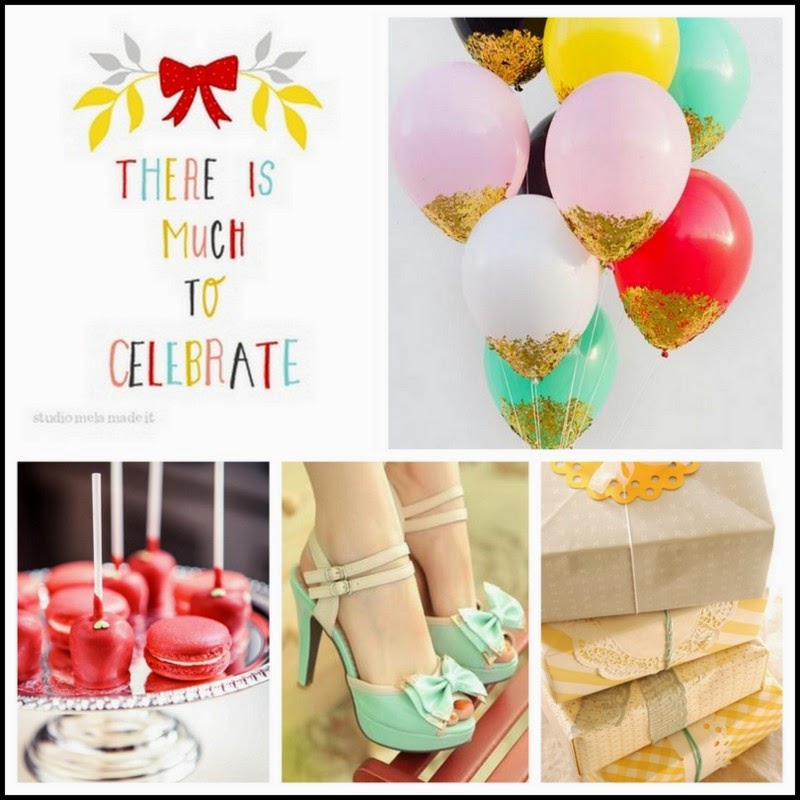
This is the mood board for the EPIC event

http://scraparoundtheworld.blogspot.co.uk/
 
Please pop over to Scrap Around the World to see all the layouts from the sponsors so far and please pop on over to the Scrap365 blog to see what our DT has done .... gorgeous work that's what!!! BUT before you go here's my offering with some close ups

 
My lovely niece on her 17th birthday. I guess the reference to 'celebrate' on the mood board inspired me to choose this photo as I received the board just after her birthday. I love the fresh colours of the mood board with the turquoise and pink and decided to leave a lot of white space to keep the airy light feel I got from seeing it.

 
The balloons made me think of flying away so I decided to splat the colour onto the page instead of making it too heavy. I used a slightly watered acrylic paint to do this and kept the splats quite thick to add texture. If you have a go at this clear your work space and even take your page outside to splat it if you can, no matter how careful you are the paint gets everywhere LOL Once the paint was completely dry I applied gilding flake glue along the edges of the runs, using my finger to spread it and then used gilding flakes to add the gold like there is at the bottom of the balloons on the mood board

 
I picked out the pinks and turquoises from the mood board with flowers, dew drops and liquid pearls...

 
... as well as with ribbons, lace and twine for added texture

 
To me the doyley added that last bit of birthday tea party feel inspired by the photo of the macaroons.


and lastly the typeset on the mood board inspired me to add some of my own handwriting in different colours and styles
 
I hope you like my take on the mood board, I really had fun creating it! Please go and check out all the many, many different interpretations of it on Scrap365 and ultimately on the Scrap Around the World blog, you will be inspired just by the sheer amount of different takes on it let alone by the beautiful work produced! I look forward to seeing your interpretation!!!
 
Thanks for popping by, I hope you're well and happy. I'll be back soon with some stuff ... not sure what yet but lots in the pipeline :) and will definitely be back next Tuesday with my step by step tutorial for my little birdie project in this months Scrap 365 magazine ... have you got yours yet?
 
Until soon, as ever,
Happy Crafting!
Love
MJM x